This release we are adding a new range of archiving functionality in line with GDPR ‘right to be forgotten’ requirements, as well as allowing you to remove files that are contributing to your data cap.
Previously any files you deleted could be undeleted by the owner of your group or by an administrator. However sometimes there are files that you never want undeleted for security, compliance or just good taste reasons, so you’ve always had the option to purge a file.
Purging a file (while not deleting it permanently), caused it to go into a special bucket where only a Forensic user had the permissions to undelete it. Not even an administrator could undelete a purged file.
This was fine for most cases, however GDPR requires the data to be permanently erased from the system so not even a Forensic user can see it.
Users have also requested the ability to automatically delete files after a fixed period. This is especially useful for groups where files need only to be shared temporarily for example uploading large iso images.
Enabling Archiving
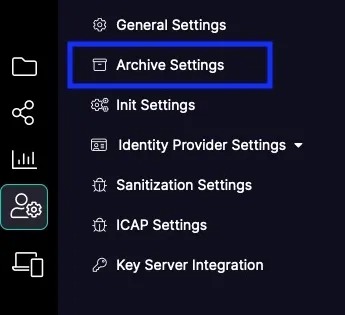
To enable archiving an administrator will need to enable it Team wide by selecting Archive Settings from the Admin screen.
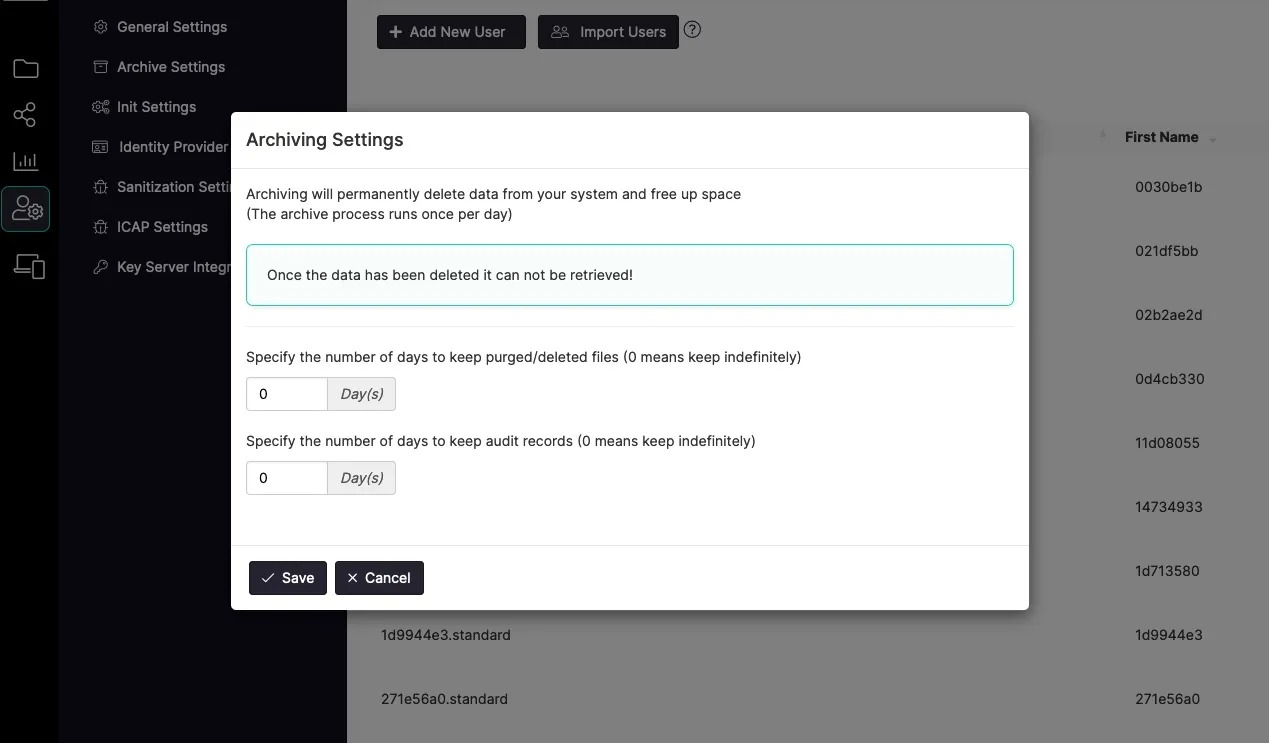
This will bring up the archive settings dialog.
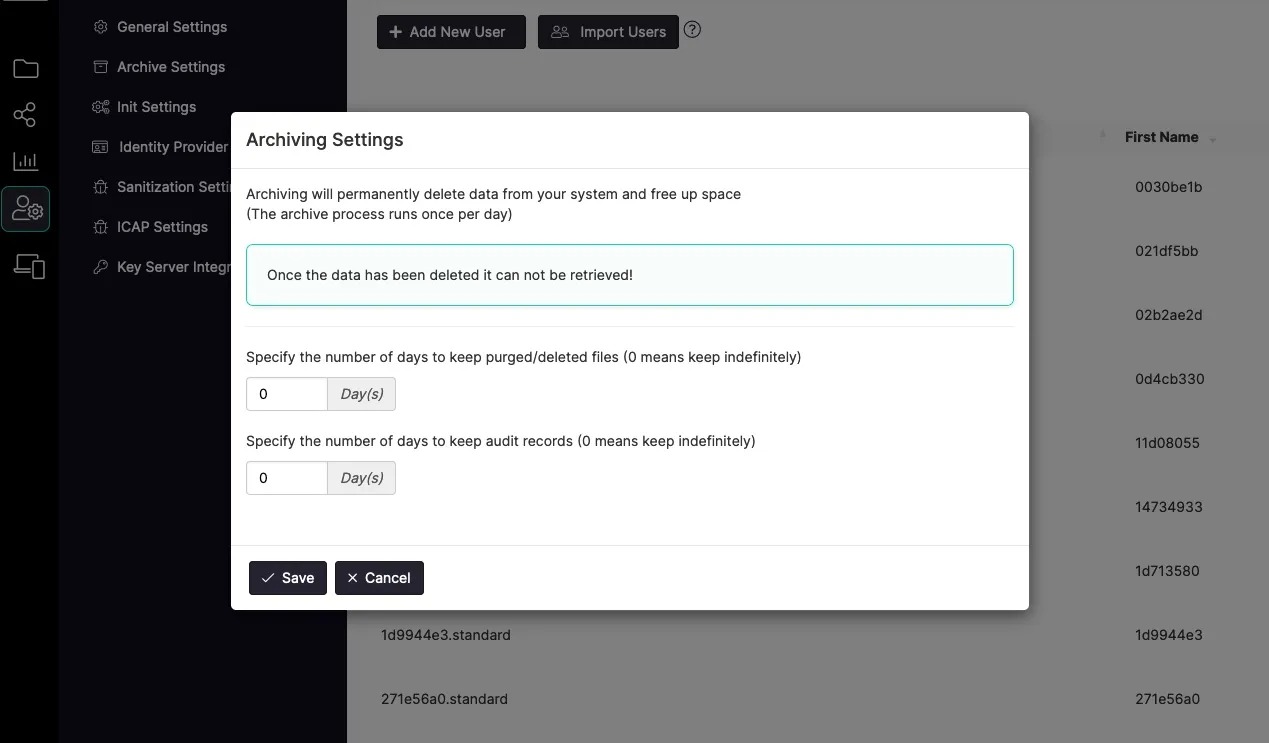
As you can see you can now set the number of days a purged file remains on the system. Setting the number of days to zero means all files will be kept indefinitely. Note that the archiving process runs once per day, so it is possible for a file to remain on the system up to 23 hours longer than the number of days specified.
Another great addition is the ability to remove old audit logs. Audit logs can be lengthy and build up over time, so it’s a nice addition to be able to delete logs older than a certain date.
Auto Expiring Files
Auto expiry is the ability to remove files after a defined amount of time. The number of days to keep files can now be configured in each group’s property settings by the group owner.
This is useful when you have lots of large temporary files that need to be continuously cleaned up manually for example.
To turn this feature on for a group select Edit Group in the Group Properties sidebar.
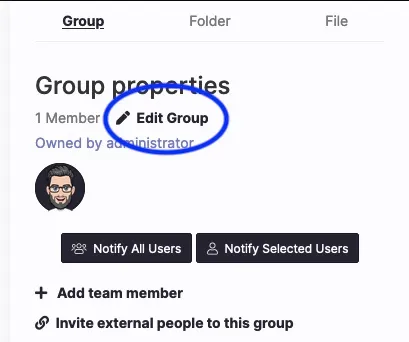
This will bring up the edit group dialog where you are now able to set (on a group level) the number of days that a file should be kept for before it is Purged.

As always we hope you like our new features!
If you have any comments or questions please feel free to reach out to team@suredrop.io